
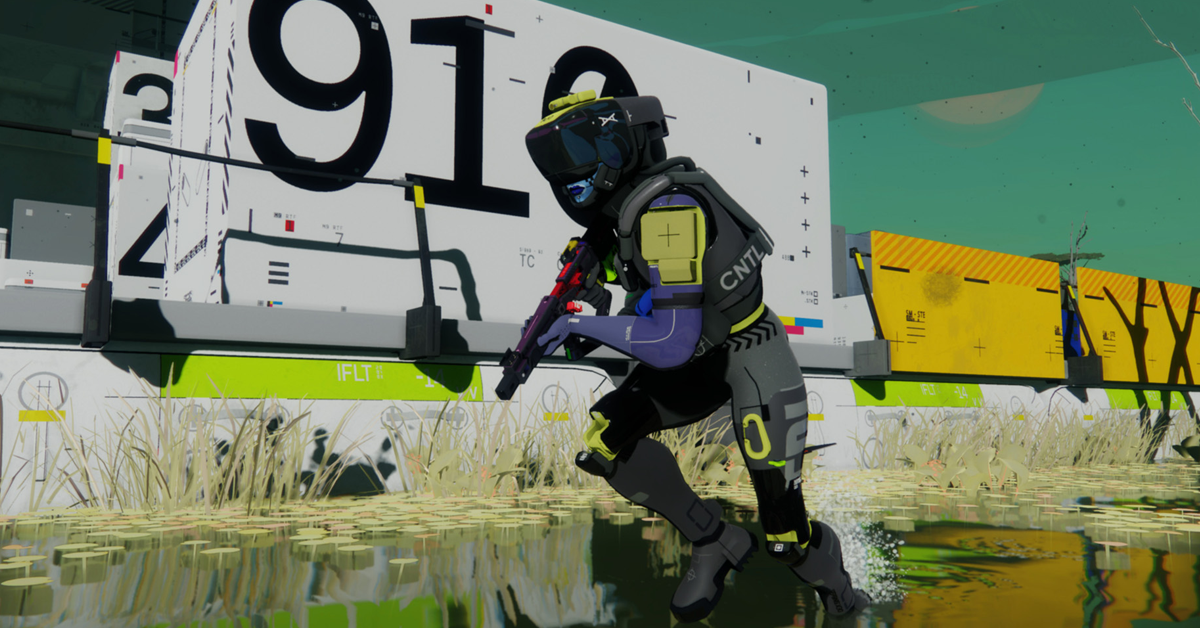
Marathon is a fast, intense extraction shooter where every moment counts. If you miss a frame, stutter during a gunfight, or experience any input delay, you could lose your entire loadout. On Tau Ceti IV, performance is about survival, not just looks.
To get smoother fights, clearer sightlines, and the lowest input delay, use the right settings. This guide balances visibility and high FPS with the Server Slam build—winning, not style, comes first.
Core Video Settings
Window Mode – Fullscreen
Use Fullscreen mode. There’s no borderless option, but exclusive fullscreen gives better performance and lower latency—crucial in PvP.
Resolution – Native
Set your monitor to native resolution. Lowering it blurs enemies. We boost performance in other ways.
VSync – OFF
VSync adds input lag, which is unacceptable here. Turn it off—a little tearing is better than delayed shots.
Frame Rate Cap – OFF (Usually)
Only cap FPS if your system overheats or you’re on battery. Otherwise, let your PC push max frames for less input delay.
Field of View – 80–95
FOV is personal, but 80–95 is best. Higher FOV improves vision but can lower performance and shrink distant targets. 90 is a solid choice.
Advanced Graphics Settings
Here’s where you can really boost your performance.
Graphics Quality Preset – Custom
Skip presets—they waste performance or worsen visuals. Custom settings are best.
Anti-Aliasing – DLSS or FSR
If you’re using an NVIDIA RTX GPU, use DLSS. If not, use AMD FSR. Both will massively improve performance while maintaining respectable image clarity.
These technologies scale well to deliver more FPS while maintaining sharp visuals.
Resolution Scaling – Balanced
Balanced is the sweet spot. It internally renders lower and upscales to native resolution. This can dramatically increase performance, especially during chaotic fights with effects and explosions.
If your graphics card is the bottleneck, this setting will give you the biggest FPS boost.
Screen Space Ambient Occlusion – High
Set this to High for added depth and clearer shadows, without much GPU impact.
Anisotropic Filtering – 16x
Set to 16x for sharper textures at angles with almost no performance hit on modern GPUs.
Texture Quality – Based on VRAM
This setting is very important.
6GB VRAM → Low
8GB VRAM → Medium
12GB+ VRAM → High or Highest
Texture quality uses VRAM. Set it too high, and you’ll get stutters—match it to your GPU memory.
Shadow Quality – Medium
Shadows on High or Ultra add significant GPU load for minimal competitive benefit. Medium keeps shadows stable, prevents flickering, and protects your FPS.
Environment Detail Distance – Low
Lowering this prevents FPS drops in dense areas—smooth play matters more than distant detail.
Character Detail Distance – High
This setting is essential.
Keep enemy detail high, even at range, so threats are clear. Don’t lower this—visibility is critical.
Foliage Detail Distance – Lowest
This is one of the biggest competitive tips in this guide.
Lowering foliage detail cuts clutter and lets you spot enemies easier, while boosting FPS.
Light Shafts – Preference
Light shafts are visual—turn off for clarity in fights or on for atmosphere.
Motion Blur – OFF
Never use motion blur—it reduces clarity during quick turns and while tracking.
Additional Competitive Tweaks
Chromatic Aberration – Preference
Chromatic aberration distorts edges. Turning it off keeps visuals clean.
NVIDIA Reflex – ON (If Available)
With NVIDIA gear, always enable this setting.
NVIDIA Reflex cuts the delay between your mouse and screen—essential for close-range fights.
UI Refresh Rate – High
It uses a bit more power, but stops UI stutters. Keep it on High.
What Performance Should You Expect?
Expect 80–90 average FPS and 1% lows around 66.
Results vary, but 1% lows, not average FPS, matter most. Smooth frame pace makes gameplay feel good.
If you only remember three tips:
- Turn off VSync
- Lower foliage distance
- Use DLSS/FSR Balanced
Doing these three things will greatly boost your performance and visibility.